

How to Add Voice on Google Slides: A Complete Guide for 2026
Adding voice to Google Slides is pretty simple on the surface: you record audio, pop it into Google Drive, and use the Insert > Audio menu. But knowing how to do it is one thing; understanding why it can completely change the game for your content is another.
This simple step transforms a static deck into a dynamic, self-contained story.
Why Add Voice to Your Google Slides
Let's face it, a silent presentation deck can feel lifeless. By adding a voiceover, you turn your Google Slides from a simple collection of visuals into a rich, self-guided narrative. Think about it—you can turn a standard presentation into an engaging online course module or a powerful sales pitch that works for you 24/7. This isn't just a nice-to-have; it's about forging a real connection with your audience.

When you master adding voice to Google Slides, you can hold attention longer and dramatically boost the perceived value of your content. For creators and educators, this is an incredible way to build high-value digital products that truly stand out from the noise.
Boost Engagement and Connection
A voiceover adds a human element that text and images alone just can't match. Your voice guides your audience through the material, clarifies complex points, and makes the entire experience feel more personal and alive.
This is especially critical for creators building online communities and courses. On a platform like Zanfia, an AI team handles the busywork of packaging those narrated slides into a course, a community post, or a checkout page, and a creator can dictate any of it out loud instead of clicking through menus. The lessons land inside the creator's own branded environment, with a checkout built to sell right underneath: order bumps, upsells, and installments so a $600 course can be split into four payments without pushing students toward an external tool.
Increase Accessibility and Clarity
Narration isn’t just about engagement—it’s a cornerstone of accessible design. It provides an essential alternative for people who learn better by listening or for those with visual impairments, making your message more inclusive and expanding your reach.
Beyond that, a voiceover ensures your message is delivered exactly as you intend. There's no room for your tone or emphasis to be misinterpreted, which is a common pitfall with text-only content.
- For educators: It means delivering lectures that are more personal, clear, and impactful.
- For marketers: It leads to pitches that resonate deeply and guide prospects with a confident, human touch.
- For business owners: It ensures training materials are consistent, easy to follow, and effective.
A well-narrated presentation signals a real commitment to quality and professionalism. It tells your audience that you’ve invested the effort to create a polished, thoughtful experience—a crucial differentiator for anyone selling premium digital products. If you want to dive deeper into crafting compelling slide decks, you might be interested in our guide on how to make great presentations.
Preparing and Recording Your Audio
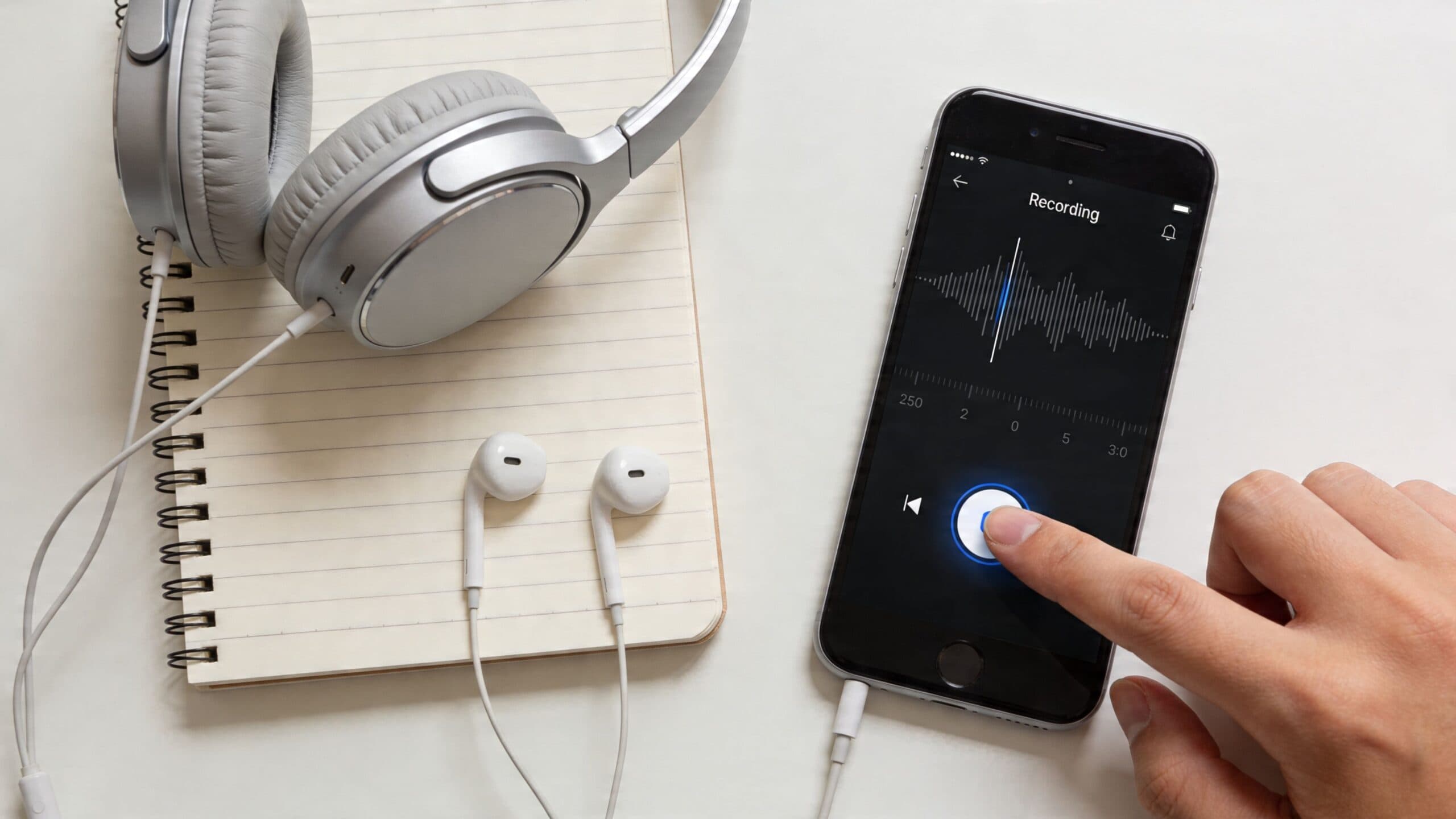
Before you even think about opening Google Slides, we need to talk about the most important part: the audio itself. A clean, crisp voiceover is what separates a professional presentation from an amateur one. The good news? You don’t need a fancy recording studio to get great results.
Your biggest enemy is background noise. Seriously. Find the quietest room you can. That means closing windows, silencing your phone, and moving away from the hum of the fridge or an air conditioner. Getting this right from the start will save you hours of editing headaches later.
Choosing Your Recording Tool
You've got plenty of options for recording your voiceover, and many of them are completely free. The best tool is simply the one you're most comfortable using.
Here's a quick rundown of some popular and accessible choices for recording your audio.
Audio Recording Tool Comparison
| Tool | Best For | Key Feature | Cost |
|---|---|---|---|
| Smartphone Voice Memos | Quick, on-the-go recording | Built-in and incredibly convenient | Free |
| Vocaroo | Simple browser-based recording | No software install needed; easy trimming | Free |
| Audacity | Advanced editing and control | Noise reduction and multi-track editing | Free |
Ultimately, any of these will work. The microphone in modern smartphones is surprisingly good, and browser-based tools are a fantastic starting point. If you want more control, a free program like Audacity is the gold standard for a reason.
Scripting and Best Practices
Don't just wing it. Trust me on this. Speaking off-the-cuff sounds great in theory, but it almost always leads to rambling, filler words, and constant re-recording.
Using something as simple as a video scripting template will help you organize your points for each slide. It keeps you focused, ensures a smooth delivery, and makes the entire recording process ten times more efficient.
Pro Tip: Always, always do a short test recording. Listen back with headphones. Do you hear a slight buzz? An echo? The dog barking next door? It’s far easier to move to a different room or wait for a quiet moment than to try and scrub the noise out later. For a deeper dive into audio quality, check out our guide on how to record a podcast—the same principles apply here.
Once you’re happy with the take, save the file. Your best bet is to use the MP3 format. It provides an excellent balance of clear audio quality and a small file size, which is critical for making sure your presentation loads quickly for everyone.
Finally, and this is the most important step in the process: upload that audio file to your Google Drive. Google Slides can only insert audio files that live in your Drive. Put it in a folder you can easily find, and you'll be ready for the next step.
How to Insert Audio into Your Slides
Alright, you've got your audio file ready in Google Drive. Now for the fun part—actually getting your voice into the presentation. Don't worry, Google makes this part pretty painless.
With your slide open, just head up to the main menu, click Insert, and then choose Audio. A new window will pop up showing all the compatible MP3 and WAV files you have in your Google Drive.
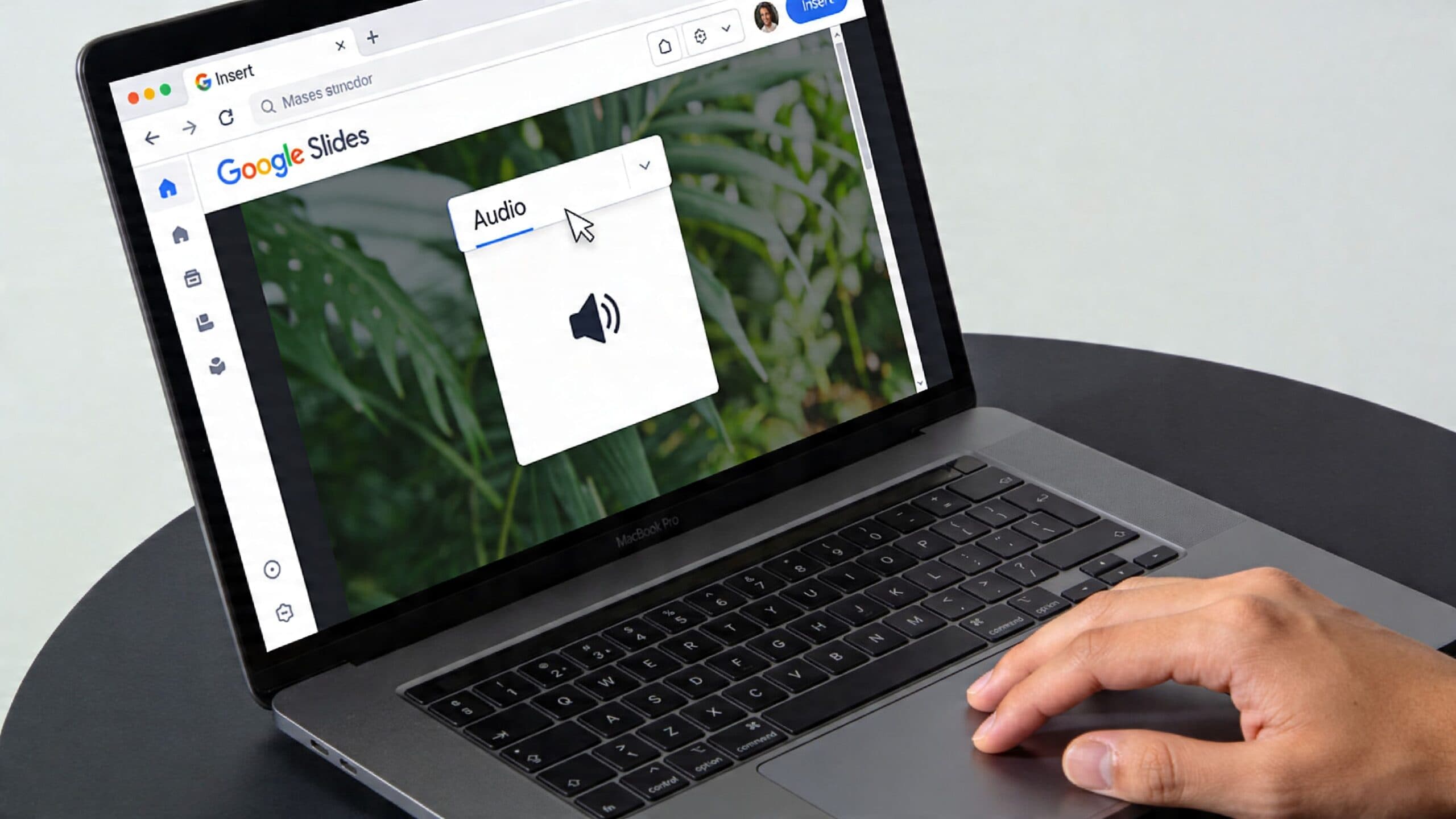
Just find the narration you just uploaded and give it a click. Google Slides will drop a little speaker icon right onto your slide, and you're officially in business.
Configuring Your Audio Playback
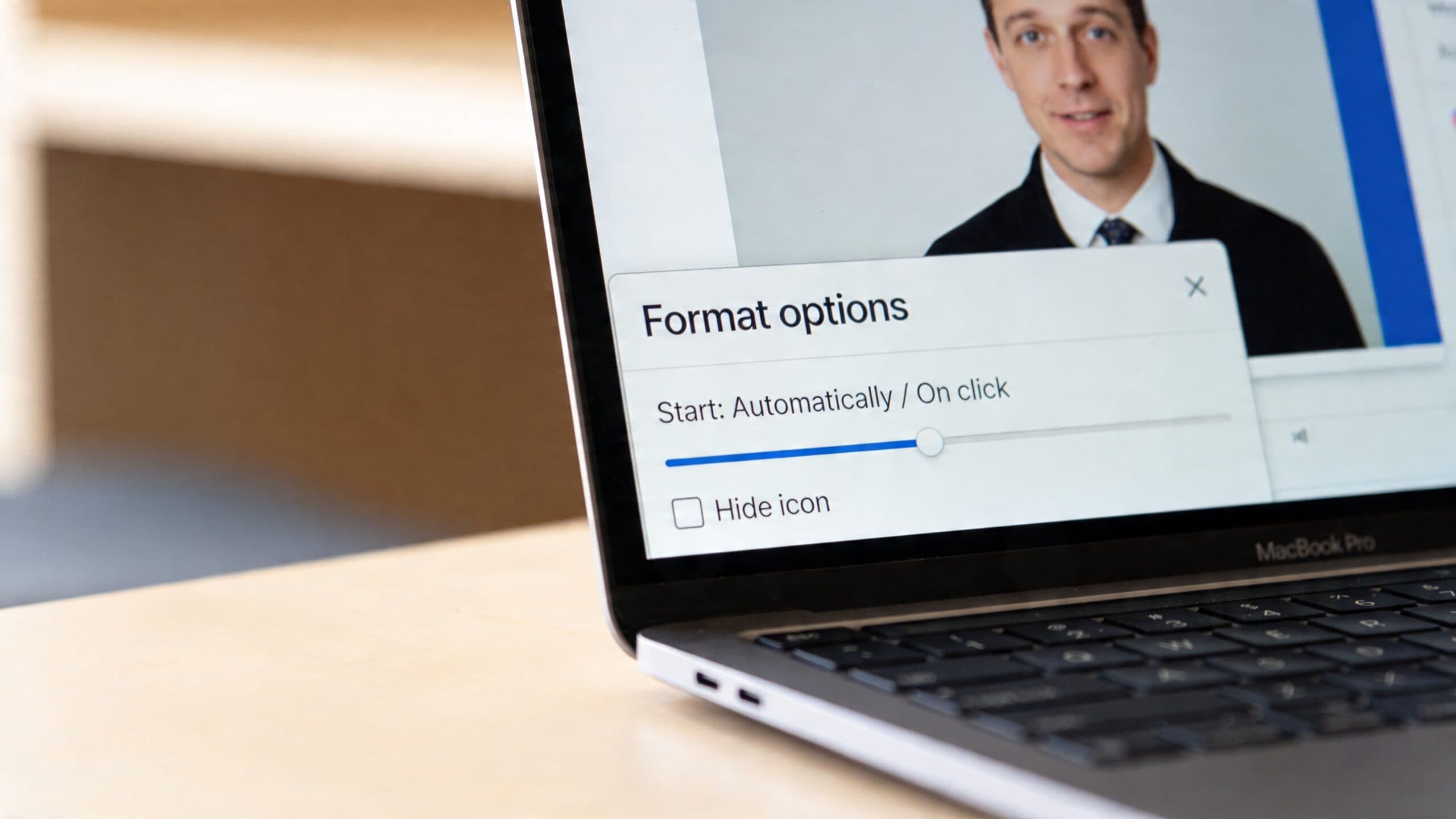
The moment you add the audio, a "Format options" panel should appear on the right side of your screen. This is your command center for everything related to how the audio plays. If you happen to click away from it, no big deal—just click the speaker icon on your slide to bring it right back.
These settings are your key to controlling the listener's experience. A huge majority of creators—especially those making self-guided presentations—tend to go with the "Start playing automatically" option.
Fine-Tuning Your Sound
Inside that "Format options" panel, you have a few powerful toggles. Getting these right is what separates an amateur slide deck from a polished, professional one.
- Start playing: You get two choices here. "On click" means you (or your viewer) have to physically click the icon. "Automatically" is the way to go for narrated lessons, as it starts the audio the second the slide appears.
- Volume: This is a simple slider that lets you adjust the volume from 0-100% . It’s perfect for making sure your voice is clear without overpowering other media.
- Hide icon when presenting: I always check this box. It makes the narration feel like a built-in part of the presentation, not just a file you dropped on top. It’s a small detail that adds a ton of polish.
- Loop audio: This is less for narration and more for ambient background music. It will just keep repeating the track until you move to the next slide.
For creators building premium courses on a platform like Zanfia, mastering these settings is key. An automatic, high-quality voiceover transforms a simple slide deck into a valuable lesson module, and inside Zanfia the same AI team that runs the rest of the business turns that lesson into a checkout with order bumps and installments, all through chat or voice commands.
These tools are a must-have for any content creator looking to produce top-tier digital materials. For a deeper look at other great resources, be sure to check out our guide on the best tools for content creators. When you pair smart slide narration with other powerful creation tools, you really start to elevate the quality and impact of what you're building.
Customizing Your Audio Playback Settings
Okay, you’ve dropped your audio file onto the slide. Now for the fun part: making it behave exactly how you want. This is where you transform a simple audio clip into a seamless part of your presentation.
Just click on that little speaker icon, and Google Slides will pop open the Format options panel on the right. Think of this as your command center for all things audio.
The first big decision is how your narration will start. You’ve got two main choices here:
- Automatically: This is the go-to for any self-running presentation. If you're building an online course module, an automated webinar, or a presentation for a kiosk, this is your setting. The audio kicks in the second the slide appears, no clicks required.
- On click: Perfect for live, interactive presentations where you are in the driver's seat. The audio won’t play until you (or your viewer) click the icon, giving you complete control over the pacing and flow.
Choosing the right one is all about matching the playback to your presentation’s purpose.
Polishing the Playback Experience
Beyond just starting the audio, the Format options panel has a few more tricks up its sleeve to really polish your final product. These small tweaks make a huge difference in how professional your slides feel.
You can adjust the playback volume with a simple slider, which is a lifesaver if your original recording is a little too quiet or boomy. It saves you from having to go back to your audio editor and re-export the file.
My favorite feature for a clean, professional look is the Hide icon when presenting option. When you check this box, the speaker icon vanishes during the actual presentation. Your voiceover feels like it’s baked right into the slide, not just a tacked-on element.
You’ll also see an option to Loop audio. While you probably won't use this for narration, it's fantastic for adding some subtle background music to a title slide or a section break to create a consistent mood.
Best Practices for Course Creators
For those of you building courses or other digital products, these settings are your tools for creating a premium experience.
Let’s say you’re building out a course on a platform like Zanfia. By setting your slide narrations to play automatically and then hiding the speaker icon, you’re not just making a slideshow—you’re creating a polished video lesson. Your students get a smooth, uninterrupted learning experience that keeps them locked in.
This level of polish is what separates an amateur-looking deck from a high-value digital product people are happy to pay for. Thoughtfully customizing these settings ensures your narrated slides work exactly as you intend, boosting both clarity and professionalism.
And if you're planning to use these slides in a live event, our guide on how to do webinars can help you tie all the pieces together for a killer presentation.
Advanced Narration Tips for Content Creators
Alright, you've nailed the basics of adding audio to your slides. Now it's time to move beyond simple voice-overs and start thinking like a pro content creator. This is where you transform a standard presentation into a polished, high-value experience that commands attention.
The real magic happens when you synchronize your slide animations with your narration. Think of it like a well-edited video—visuals appear precisely when you mention them. This technique is incredibly powerful for guiding your audience's focus and making your key points land with impact.
Crafting a Seamless Visual Flow
To get that smooth, video-like feel, you need to plan your script and your animations in tandem. As you write out what you'll say, map out exactly which image, bullet point, or chart should appear at that moment.
Here’s the workflow I use:
- Animate ‘On click’: Instead of revealing all your slide content at once, set each element to appear ‘On click’ . This puts you in the driver's seat.
- Record with deliberate pauses: When you record your audio, leave a short, intentional pause right before you introduce the next animated element. This creates a clean gap that makes syncing much easier.
- Sync in post-production: Let's be honest—Google Slides isn't a video editor. The pro move is to record your screen with a tool like OBS or QuickTime. Play your pre-recorded audio and advance your "on click" animations in real-time. The final result is a single, perfectly timed video file.
This little bit of extra work elevates your deck from a simple presentation to a professional video lesson—something people will gladly pay for.
Monetizing Narrated Slides in Your Business
For creators running their business on an all-in-one platform like Zanfia, these narrated slides become a strategic cornerstone. By turning a deck into a dynamic video lesson, you massively boost the perceived value of your online courses, workshops, and membership content.
The bigger shift is what happens around that lesson. Zanfia is built as an AI team a creator hires to run the business, so packaging a narrated deck into a course, writing the sales page, and setting up the checkout can be dictated by voice or handled through chat instead of clicked through menus. The lesson lands inside your own branded environment under your custom domain, and the checkout underneath it is built to sell: order bumps, upsells, installments to split a $600 course into four payments, and a test mode so you can buy your own product before you launch it. As of publication, Zanfia's current model is 0% platform commission on customer sales, which means what you charge for that narrated course lands with you rather than the platform.
By turning a static presentation into an engaging audio-visual experience, you're not just sharing information; you're creating a valuable asset that can be sold as a standalone product, a course module, or part of a membership subscription. This is how you connect a simple technical skill to a real monetization strategy.
Plus, these narrated decks are incredibly versatile. Once you've created one, it can be sliced and diced in dozens of ways to market your business. You can dive deeper into this by exploring different content repurposing strategies.
Ultimately, learning how to add voice on Google Slides at this level isn't just a technical skill. For digital entrepreneurs, it's a direct path to creating better products, building a more dedicated community, and growing your online business with real confidence.
Troubleshooting Common Audio Problems
So you’ve spent hours perfecting your narrated slides, only to get that dreaded email: "I can't hear anything!" It’s a frustrating moment, but don't panic.
Even with the best planning, audio glitches happen. The good news is that most of these problems are surprisingly simple to fix once you know where to look. Let's walk through the most common issues so you can get your presentation working flawlessly.
The Number One Culprit: Google Drive Permissions
Nine times out of ten, when your audience can't hear your audio, the problem is a permissions setting in Google Drive.
When you first upload a file, Google often defaults its sharing setting to "Restricted." This means only you, the owner, can access it. When someone else opens your Slides presentation, they don't have permission to play the audio file, so they get nothing but silence.
The fix is incredibly simple. You just need to change the file's sharing setting so that anyone with the link to your slides can also access the audio.
If you’ve run into this or other annoying playback issues, this quick-reference table will help you diagnose and solve them in minutes.
Common Audio Problems and Fixes
| Problem | Likely Cause | How to Fix It |
|---|---|---|
| Audience can't hear the audio | The audio file's sharing permission in Google Drive is set to 'Restricted'. | Go to the file in Google Drive, click 'Share', and change the access from 'Restricted' to 'Anyone with the link'. |
| Audio file won't play at all | The file format is unsupported, or the file is corrupted. | Re-export your audio as an MP3 or WAV file. If that fails, re-record the segment as the original file may be damaged. |
| Poor or distorted sound quality | The original recording had background noise, or the export settings were too low. | Record in a quiet space using a quality microphone. When exporting, choose a higher bitrate for your MP3 (e.g., 128kbps or higher). |
| Audio stutters or cuts out | A slow internet connection is struggling to load the large audio file from Google Drive. | Shrink your file size by converting a large WAV file to a more compact MP3. This reduces the bandwidth needed for smooth streaming. |
Setting your audio file's permission to "Anyone with the link" is the golden rule. It guarantees a seamless experience for your viewers without making your private files publicly searchable on Google. This is a non-negotiable step for any creator sharing narrated slides, especially if they're part of a paid course or premium product.
Taking a moment to check these settings ensures that all the effort you put into learning how to add voice on Google Slides pays off with a professional, reliable presentation.
For creators selling narrated slide decks on platforms like Zanfia, this level of polish isn't just nice to have—it's essential for maintaining the quality and value of your digital products.
Frequently Asked Questions
Even with the steps down, a few common questions always pop up when you're working with audio in Google Slides. Let's get those sorted out so you can wrap up your project.
Can I Record My Voice Directly in Google Slides?
That’s a common question, but no, Google Slides doesn't have a built-in voice recorder (at least, not as of 2026). You'll need to record your audio first using a separate tool.
Your phone's voice memo app is a quick and easy option. For something a bit more polished, a browser-based tool like Vocaroo or dedicated desktop software like Audacity will do the trick. Once you have the file, just upload it to Google Drive to insert it into your slides.
How Can I Make Audio Play Across Multiple Slides?
This is a classic Google Slides limitation. An audio file is tied to the specific slide you place it on, so it won't play continuously across slide transitions.
The best workaround is to edit your narration into one single, long audio track. Then, add that file to your very first slide and set it to play automatically. This is the perfect solution for self-running presentations, like a pre-recorded lesson in an online course, where the timing is all planned out.
What Is the Best File Format for Google Slides Audio?
Google Slides officially supports MP3 and WAV. While both will work, I always recommend sticking with MP3.
Why? MP3s give you great audio quality but at a much smaller file size. Smaller files mean your presentation loads faster and plays more smoothly for your audience, which is a huge deal for anyone on a slower internet connection.
Why Can't My Audience Hear the Audio I Added?
I’ve seen this happen countless times, and it's almost always a permissions issue with the file in Google Drive. When you upload an audio file, its default sharing setting is usually 'Restricted'—meaning only you can access it.
To fix this, just find the audio file in your Google Drive, click 'Share,' and change the permission from 'Restricted' to 'Anyone with the link can view.'
This one simple change makes sure that anyone who has access to your presentation can also hear your narration. It's the number one thing to check before you share.
Ready to turn your narrated presentations into premium products? Zanfia is an AI team a creator hires to run the business, wrapped around courses, communities, newsletters and 12 product types under one brand. You dictate the work by chat or voice, and it lands in a checkout built to sell with order bumps, upsells and installments. As of publication, the current model is 0% platform commission on customer sales, and every plan starts with a 14-day free trial, no credit card required. Start building with Zanfia today.