

Boost Course Engagement with an Embedding Audio Player
You've probably faced this choice already.
You have audio worth publishing. Maybe it's a lesson recap, a guided exercise, a private podcast episode, a bonus interview, or a members-only audio drop. The easy move is to paste a link to Spotify, SoundCloud, or a hosted file and call it done. The better move is to ask a harder question first. What should this audio do for the business?
An embedding audio player isn't just a playback widget. It shapes how long people stay on the page, whether they consume the lesson in context, how premium your product feels, and how much control you keep over the user experience. For educators, creators, and membership operators, those details matter more than the HTML.
Why Embedding Audio Is a Game-Changer for Your Content
A student finishes a lesson on their phone during a commute. If the audio recap opens inside the course page, they keep listening and stay connected to the next step. If it sends them to another app or a raw file link, that session often breaks right there.
That is the true value of embedding audio. It keeps consumption inside the experience you built.
A lot of creators still treat audio like a file to attach. That choice usually weakens the page doing the actual work, whether that page is teaching, selling, onboarding, or building community. An embedded player keeps the lesson, discussion, call to action, and playback in one place, which gives you more control over attention and a more consistent brand experience.

Audio performs better when it supports the moment
The strongest use case for embedded audio is context. A short summary under a lesson helps students review without leaving the module. A private voice note inside a community post feels personal and immediate. An audio version of an article lets visitors keep consuming while they scroll, work, or commute.
In each case, the player supports a clear business goal. More lesson completion. Better member retention. Longer time spent with your content. Those gains do not come from the audio file alone. They come from placing the file where it removes friction and reinforces the value of the page.
That strategic choice matters more than the embed code.
Practical rule: If audio strengthens the page someone is already on, embed it there. If the audio itself is the product and discovery on outside platforms matters more than on-site experience, linking out can make sense.
Embedded audio changes how premium your product feels
People notice continuity. They also notice when a product feels stitched together.
Inside a course or paid community, every jump to a third-party app introduces small problems. The design changes. The surrounding context disappears. Suggested content from another platform can compete with your own. Even when playback works, the experience feels borrowed instead of owned.
Embedded audio fixes that. The lesson stays the lesson. The community post stays the post. Your brand, navigation, and next action remain visible while the content plays.
This is one reason practical ways to increase student engagement often start with reducing friction around how students consume the material, not just improving the material itself.
The real decision is control versus convenience
Creators often frame audio embeds as a technical task. Paste code, confirm it works, move on. In practice, it is a product decision.
External platforms are faster to set up and useful when distribution matters most. Embedded, on-platform playback is usually the better choice when you care about member experience, conversion paths, and brand control. For premium education businesses, that trade-off is clear. Keeping audio inside your own environment usually does more for the business than sending people elsewhere.
Zanfia fits that second environment. It runs an AI team on your creator business rather than acting only as a course player: courses, communities, paid newsletters, digital products and consultations live under one brand, and the assistant can act on any of them by chat or by voice, so embedding a lesson audio is one instruction rather than a manual layout job. A checkout built around order bumps, installments and test mode sits on the same platform, so the audio you embed today can be repackaged as a paid bonus tomorrow without moving files between tools.
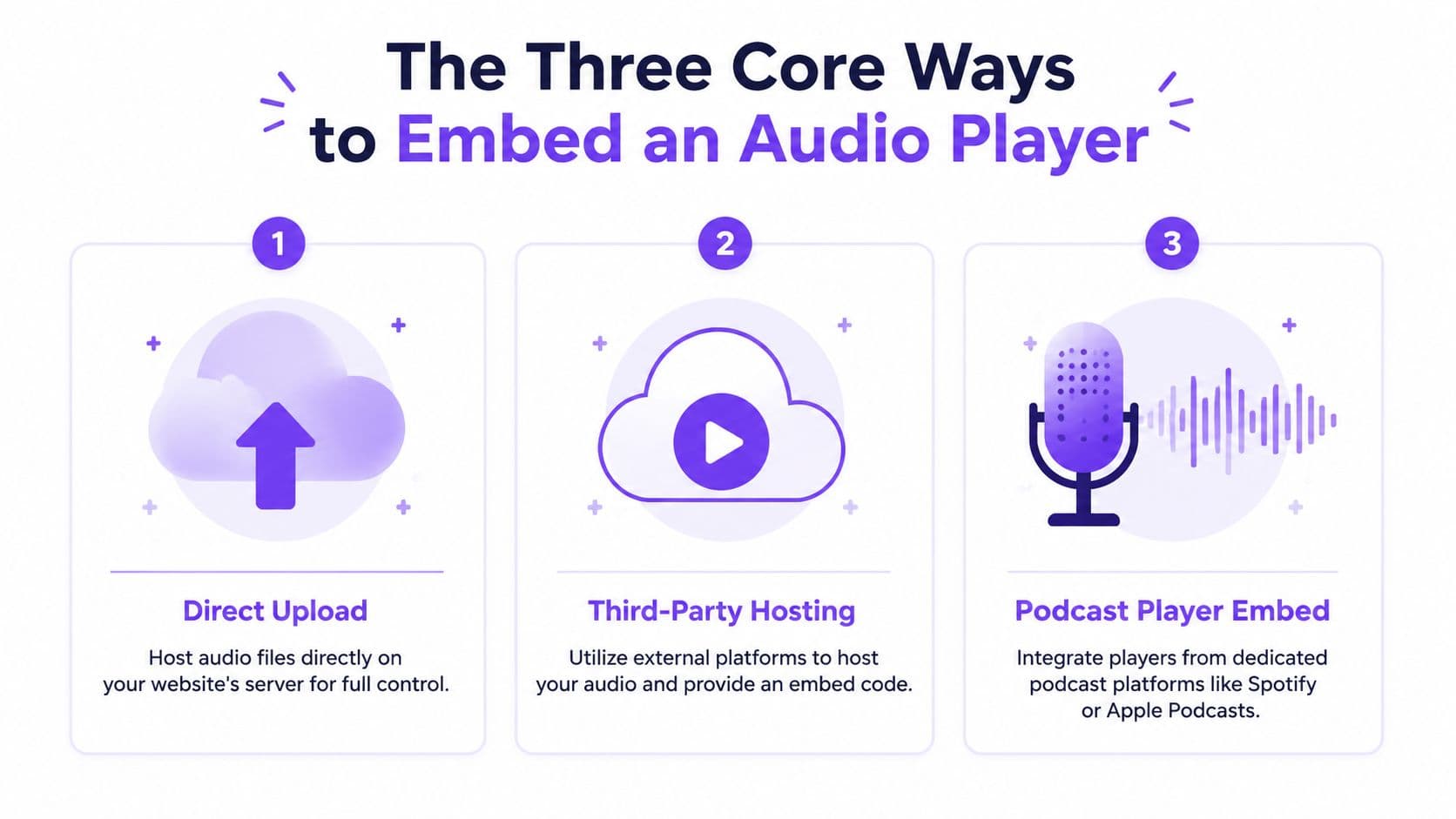
The Three Core Ways to Embed an Audio Player
Choosing an audio embed is usually a product decision before it becomes a technical one. In a public blog post, speed and reach may matter most. In a paid course or member community, the better question is simpler. Does this player keep the learner focused, protect your brand, and fit the experience you are selling?
Option one with the HTML5 audio tag
The HTML5 <audio> tag gives you the most control. You host the file, place the player where it supports the lesson, and keep the entire interaction on your own page.
Example:
<audio controls preload="none">
  <source src="lesson-summary.mp3" type="audio/mpeg">
  Your browser does not support the audio element.
</audio>
This works well for courses, bonus lessons, guided exercises, and private resource libraries where the audio supports a larger learning path.
What you gain:
- Brand control: No outside logos, related tracks, or platform prompts.
- Layout control: The player can sit next to notes, downloads, comments, or a call to action.
- Cleaner student flow: Learners stay inside the lesson instead of interacting with another platform.
What you take on:
- Hosting responsibility: You manage files, storage, and delivery.
- Basic default UI: Native browser controls are functional, but not always polished.
- More implementation detail: You need to test playback across browsers and devices.
For premium education, this is often the strongest option. It treats audio as part of the product, not as a borrowed widget. Inside a Zanfia course or community, this method pairs well with an AI-first workflow: you dictate the placement and framing, and the assistant slots the player next to the lesson text and the checkout for the paid upgrade.
Option two with iframe embeds from third-party hosts
Iframe embeds favor speed. You upload audio to a service like Spotify or SoundCloud, copy the embed code, and publish.
A typical embed looks like this:
<iframe
  src="https://open.spotify.com/embed/episode/your-id"
  width="100%"
  height="152"
  frameborder="0"
  allowtransparency="true"
  allow="encrypted-media">
</iframe>
Or a SoundCloud embed:
<iframe
  width="100%"
  height="166"
  scrolling="no"
  frameborder="no"
  allow="autoplay"
  src="https://w.soundcloud.com/player/?url=https%3A//api.soundcloud.com/tracks/your-id">
</iframe>
This route makes sense when distribution and setup time matter more than presentation. It is useful for public samples, promotional episodes, artist tracks, or any page where the priority is getting playable audio live fast.
The trade-off shows up after launch, not before.
- Easy publishing: Copy, paste, done.
- Platform-managed delivery: The host handles playback infrastructure.
- Familiar interface: Some visitors already know how that player works.
But the limits are real:
- Less visual control: The player reflects the host platform first, your brand second.
- More distractions: Platform branding and related content can pull attention away from the lesson.
- Looser product fit: The embed may work technically while still feeling out of place inside a premium experience.
This same trade-off appears in other media workflows, including how to add music to PowerPoint presentations. The technical step is easy. The harder question is whether the external player supports the experience you want people to have.
If the source audio needs cleanup before you embed it, use tools that improve clarity first, especially for spoken lessons. A practical example is how to isolate voice from recordings.
Option three with podcast player embeds
Podcast player embeds sit in the middle. They are still external players, but they are designed around episodes, shows, and subscription behavior rather than one standalone lesson file.
They fit well in a few cases:
- public podcast episodes featured on your site
- private podcast feeds where listeners expect episodic delivery
- creator pages that benefit from show art, episode titles, and podcast listening habits
They fit less well inside structured learning. A podcast player brings its own logic. Episode lists, show framing, and subscription cues are useful for a podcast brand, but they can compete with a course path where each audio lesson has a specific role.
I use podcast embeds when the audio itself is the destination. I avoid them when the audio is one step inside a guided curriculum.
Audio embedding methods compared
| Method | Best For | Control Level | Ease of Use |
|---|---|---|---|
HTML5 <audio> | Courses, gated lessons, private resource pages | High | Moderate |
| Third-party iframe | Fast publishing, public tracks, playlists | Medium to low | High |
| Podcast player embed | Episode-based publishing, public show promotion | Medium | High |
A simple way to choose
Use HTML5 if the audio lives inside a paid product and needs to feel native to the lesson.
Use iframe embeds if you need fast publishing or want the hosting platform to do the heavy lifting.
Use podcast embeds if the listener expects a show experience with episodes, artwork, and subscription context.
Many creators end up using all three. The strong strategy is choosing the method that matches the business goal of that specific page. For premium courses and communities, that usually means keeping the listening experience as close to your own platform as possible. Zanfia fits that job because it treats the audio, the lesson page and the checkout as one product surface an AI team maintains for you, rather than three tools you stitch together by hand.
Optimizing Your Embedded Player for Speed and Accurate Analytics
A student opens a lesson on mobile, taps play, and waits while the page loads three audio players, a heavy iframe script, and artwork they may never use. That delay costs attention before the lesson even starts. It also muddies your reporting, because auto-loading audio can look like interest when nobody chose to listen.
For premium courses and communities, speed and measurement are not technical side issues. They shape completion rates, trust in your analytics, and how polished your brand feels inside the lesson experience. The strategic choice is simple. Do you want the easiest embed to publish, or the cleanest playback and the clearest signal about what members consumed?
Start with user intent, not autoplay
Autoplay and aggressive preloading usually create two problems at once. They make pages heavier, and they blur the difference between a real listen and a file that started loading in the background.
For HTML5 audio, the clean default is still the best one:
<audio controls preload="none">
  <source src="bonus-audio.mp3" type="audio/mpeg">
</audio>
preload="none" tells the browser to wait until the listener takes action. That protects bandwidth, especially inside course libraries where a member may open several lesson pages in one session before deciding what to play.
Browser policies already push in this direction, so building around explicit user action is the safer long-term choice anyway. If a playback strategy depends on surprise audio, it is working against both the user and the browser.
Accurate analytics start with a cleaner setup
Good audio reporting depends on what you count. A page load is not the same as a listen. An iframe rendering is not the same as lesson engagement. In practice, the strongest signal usually comes from intentional actions such as play clicks, completion milestones, and repeat listens tied to a logged-in member.
That matters more in education than in publishing. A podcaster may care about broad reach. A course creator needs to know whether students used the lesson asset and whether that behavior connects to progress, retention, or upsells. If you want that broader context, the same discipline used in analyzing website traffic and behavior patterns applies here too.
The performance trade-off is usually between convenience and control
Third-party players are fast to deploy, but they often load extra scripts, tracking layers, and UI elements you do not control. That can be fine for public content marketing. It is less attractive inside a paid lesson where every extra element competes with the teaching material.
A native HTML5 player gives you more control over loading behavior, styling, and event tracking. The trade-off is setup time. You or your developer need to handle storage, file delivery, and analytics events more deliberately. For many creators, that extra work is worth it because the lesson feels more native and the reporting is easier to trust.
Practical rules that improve both speed and reporting
Use these settings consistently:
- Disable autoplay so play starts with a real user action.
- Set
preload="none"unless there is a clear reason not to. - Avoid stacking multiple players near the top of a lesson page.
- Keep iframe embeds for cases where publishing speed matters more than brand control.
- Clean the recording before publishing. Poor audio quality increases drop-off, so it helps to learn how to isolate voice from recordings before the file reaches your player.
The strongest setup is the one that matches the page's job. In a public blog post, convenience may win. In a premium course or member community, control usually wins. Zanfia is a strong fit for that second environment because the player can support the lesson instead of pulling attention away from it, and the same page can host the checkout, the order bump and the test purchase you use to verify tracking before launch.
Making Your Audio Player Accessible and WCAG Compliant
A student opens a lesson on a phone during a commute. Another uses a keyboard at a desk. Someone else wants to scan the transcript before deciding whether the audio is worth ten minutes. If your player only works well for one of those people, the issue is not just compliance. It is completion, trust, and the overall feel of your product.
Accessible audio is part of the product strategy. In a premium course or member community, the player has to support learning without creating friction. That means clear controls, predictable behavior, and a text alternative that respects how people study.
What to check before you publish
A usable audio embed should pass a few basic tests every time:
- Keyboard access: Users can tab to the player, start playback, pause, and change volume without a mouse.
- Clear control labels: Play, pause, seek, and speed controls need labels that screen readers can announce correctly.
- A transcript near the player: Audio-only teaching content should include a readable transcript or text summary on the same page.
- Visible focus states: Keyboard users need to see which control is active.
- No autoplay surprises: Playback should begin only after an intentional action.
These checks are practical, not theoretical. If a student cannot pause a lesson quickly, revisit a point through the transcript, or understand what a button does with assistive tech, the lesson becomes harder to use than it needs to be.
Teams that want a faster review process can use tools that catch issues early. For design-stage checks, automated WCAG compliance for prototypes is a useful resource.
Accessibility improves retention and brand perception
Transcripts do more than satisfy a requirement. They help students review key points, pull quotes into notes, and search for a concept without replaying the full recording. That matters in paid education, where convenience shapes perceived value.
The same principle applies to audience fit. Creators who publish audio with a written companion often serve a wider range of members than creators who post audio alone. You can see the same pattern in newsletter formats built for older audiences, where readability and clarity affect whether people stay engaged.
This is also where the embed decision becomes strategic. A basic third-party player may give you speed, but it can limit how well the experience fits your lesson design, transcript layout, and brand standards. In Zanfia, audio works best when it is treated as part of the teaching system, not as a detached media block. Because the assistant can act on any part of the workspace by chat or voice, you can dictate the transcript placement, the framing text and the accessibility copy in one pass instead of editing each lesson by hand.
How to Embed Audio in Your Zanfia Courses and Community
The strongest implementation is usually the one that matches the job of the content.
If the audio is a lesson asset, treat it like curriculum. If it's a community update, place it where conversation happens. If it's a public episode, use a hosted player where discovery matters. The point isn't to use one method everywhere. The point is to use the right one without creating friction for the member.
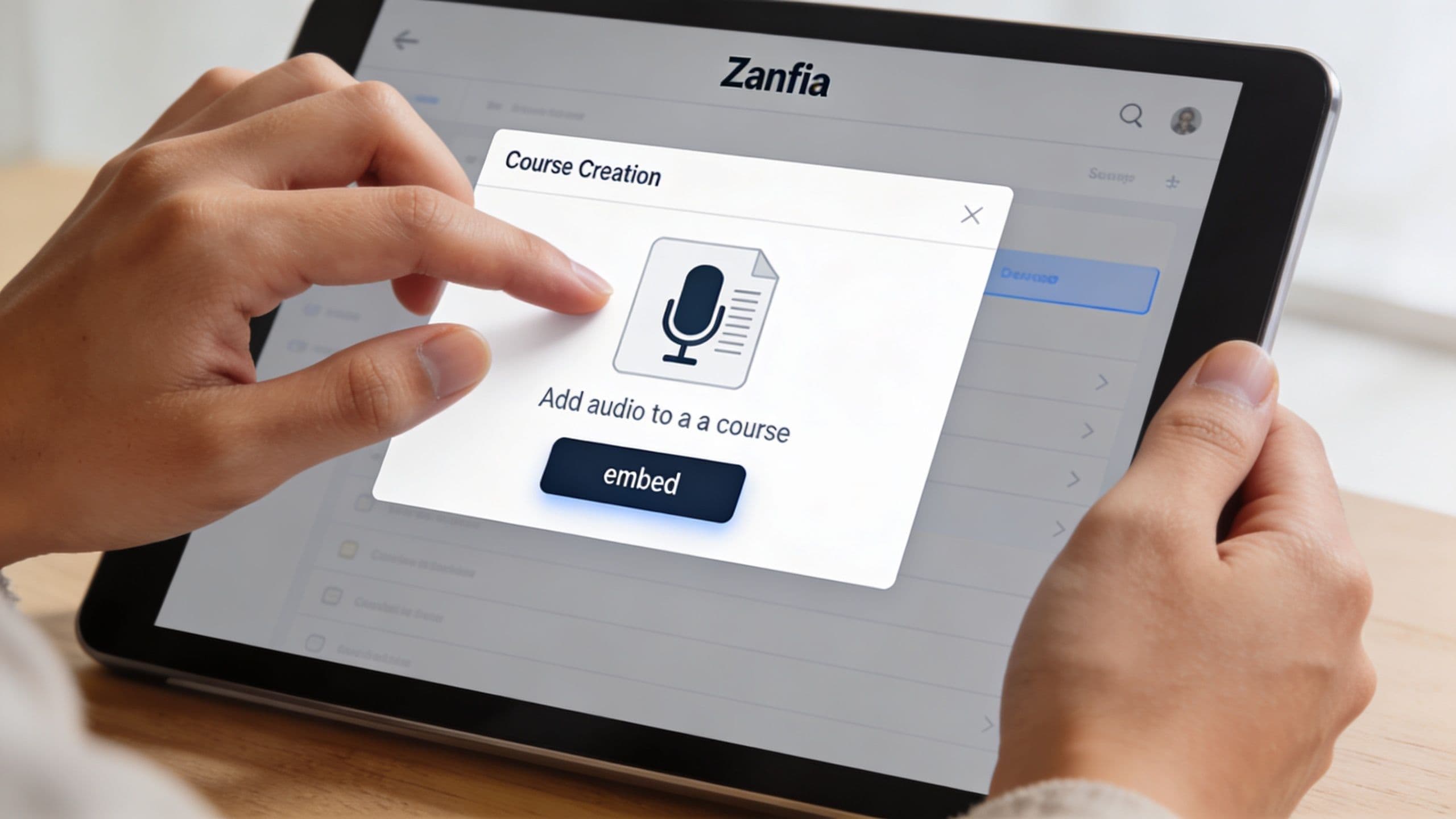
In a course lesson
For lesson audio, the cleanest setup is usually native media inside the lesson flow. That keeps playback close to text, downloads, prompts, and progress context.
A practical workflow looks like this:
- Create the lesson first Decide whether the audio is the main lesson or a supporting layer such as a summary, walkthrough, reflection, or practice track.
- Upload or insert the audio where the student needs it Place it near the assignment, explanation, or transcript instead of dumping it at the bottom of the page.
- Add framing text Tell the student what the audio is for. A short line like “Listen to this recap before the quiz” increases clarity.
- Pair it with a text version This improves accessibility and helps students review faster.
A key advantage in a course environment is continuity. The student doesn't feel moved into another app or service. The audio behaves like part of the lesson, not an external extra. In Zanfia, you can dictate that whole workflow to the assistant instead of clicking through each step, and turn a completed lesson into a paid bonus at checkout with an order bump or a payment plan without rebuilding the page.
In a community post or member update
Community audio works best when it feels immediate and conversational. Weekly voice notes, commentary on current events, private podcast-style updates, and quick responses to member questions all fit well here.
Use a simple decision rule:
- If the post is exclusive and contextual, keep the audio embedded directly in the post.
- If the audio is public-facing and already lives on a major platform, embed the external player but add commentary above it so the post still has native value.
Here, many creators get the tone right. A short audio drop can feel more human than a polished video, and members often consume it faster because they can listen while walking or commuting.
Mobile playback matters more than most creators expect
A polished desktop embed isn't enough. Members listen from phones, often on older devices and weaker connections.
That's why playback performance matters in practice. For older Android devices from 2014 to 2018, Low-Latency DSP can bypass typical buffer overhead and produce performance gains of up to 700 percent, according to the verified findings in the DAFx paper on LDSP and Android audio performance. Most creators won't implement low-level audio engineering themselves, but the takeaway is practical. The platform and playback stack matter, especially when your audience uses a wide range of devices.
Implementation cue: Test audio on an older phone, not just on the laptop you used to upload it.
Keep the content model consistent
Students get confused when one lesson uses a native player, the next opens Spotify, and the next downloads an MP3 automatically. Members notice that inconsistency even if they don't complain about it.
Pick a pattern for each product type and stick to it. For example, use native lesson audio for courses, embedded hosted players for public podcast promotion, and concise in-post audio for community updates. Consistency makes the product feel more reliable.
Final Thoughts on Your Audio Strategy
An embedded player looks like a small implementation choice. In practice, it shapes how members experience your product, how much control you keep over the environment, and how easily your audio library can grow without becoming messy.
That decision gets more important as your catalog expands.
A course creator with ten lesson audios can get away with almost any embed. A creator with hundreds of lessons, member updates, workshop recordings, and bonus resources needs a system that supports discovery, consistent branding, and clean delivery inside the product itself. The player is only one layer. The strategic choice is where playback happens, who owns the listener relationship, and what trade-offs you accept between speed, customization, and control.
The next step for audio is not just better playback. It is better organization. Search, retrieval, and contextual recommendations matter more once members have enough content to choose from. Strong retrieval models can significantly improve how quickly students find the right explanation, clip, or lesson inside a large library. For premium education products, that affects completion, satisfaction, and support load.
A few practical rules hold up well:
- Use native or self-controlled audio placement for paid courses, private communities, and premium libraries where brand control and member focus matter.
- Use third-party embeds for public distribution when reach and publishing speed matter more than layout control.
- Keep rights in order before publishing music-related audio. If you are releasing covers or lessons built around recognizable songs, review Mogul's cover song licensing guide .
- Build each audio asset so it can serve more than one purpose. A useful recording can support lessons, posts, announcements, and searchable resources. That is the foundation of a strong content repurposing workflow .
For most creators selling expertise, the best long-term choice is the one that keeps members inside your own product, under your own brand, with fewer distractions and clearer analytics. Zanfia is a strong option for premium course and community audio because it runs as an AI team on top of your business: you dictate the changes by chat or voice, the assistant slots audio into courses, communities and paid newsletters under one brand, and the same platform carries the checkout with order bumps, installments and test mode so the listening experience feeds directly into a sale. Availability of the deeper AI capabilities depends on the plan, so check the current Zanfia pricing before you commit.
FAQ
When should I choose HTML5 audio over an iframe embed from Spotify or SoundCloud?
Use the HTML5 audio tag when the recording lives inside a paid product like a course, gated lesson, or member community, because it keeps the player on your page without outside logos or related-track prompts. Choose an iframe embed when publishing speed and reach matter more than presentation, such as public samples or promotional episodes. The article frames this as a control-versus-convenience decision, not a purely technical one.
Are podcast player embeds a good fit inside a structured course?
The article recommends podcast embeds when the audio itself is the destination, for example public episodes or private podcast feeds where listeners expect episode lists and subscription cues. Inside a guided curriculum, those same show-framing elements can compete with the specific role each lesson audio plays. As a rule of thumb, use podcast embeds when the show is the product, and avoid them when the audio is one step inside a larger learning path.
Why does the article recommend preload="none" and no autoplay on embedded audio?
Autoplay and aggressive preloading make pages heavier and blur the difference between a real listen and a file that started loading in the background. Setting preload="none" tells the browser to wait for user action, which protects bandwidth when a member opens several lesson pages in one session. It also produces cleaner analytics, because play clicks and completions become the signal instead of page loads.
How does embedded audio affect analytics for a course or membership?
A page load is not the same as a listen, and an iframe rendering is not the same as lesson engagement, so the strongest signal comes from intentional actions like play clicks, completion milestones, and repeat listens tied to a logged-in member. A native HTML5 player gives you more control over event tracking than a third-party iframe that loads its own scripts. For course creators, that reporting connects audio use to progress, retention, and upsells.
How does Zanfia handle embedding audio inside a course or community?
Zanfia treats the audio, the lesson page, and the checkout as one product surface maintained by an AI team, so embedding a lesson audio becomes one instruction by chat or voice rather than a manual layout job. Courses, communities, paid newsletters, digital products, and consultations live under one brand, and checkout features like order bumps, installments, and test mode sit on the same platform. Specific feature availability is plan-dependent, see zanfia.com/pricing.
The embed code matters less than the product decision behind it. Choose the method that protects attention, supports learning, and keeps control in your hands.