

How to Add Music to PowerPoint Presentations: A Pro Guide
You've probably seen this happen. The slides are clean, the content is solid, and the presenter clearly knows the topic. But the room still feels flat. There's dead air before the first word, awkward silence during transitions, and no sense of momentum holding the whole experience together.
That's usually when people realize PowerPoint audio isn't a gimmick. It's production value.
For online educators, webinar hosts, course creators, and digital marketers, knowing how to add music to PowerPoint presentations is less about decoration and more about control. The right track can shape pacing, reduce friction between sections, and make a deck feel intentional instead of assembled at the last minute. The wrong track, or the wrong setup, can do the opposite and break trust fast.
Why a Soundtrack Can Transform Your Presentation
A quiet slide deck can feel unfinished, especially in webinars, recorded lessons, event loops, and welcome modules. A subtle intro track on the title slide changes the opening immediately. It gives the audience a cue that something has started and that someone cared about the delivery, not just the bullet points.
That matters more than most presenters think. PowerPoint's audio insertion feature was introduced in 2007, and the platform now serves over 300 million monthly users, with 88% market share as of 2025. Microsoft also supports continuous audio across up to 999 slides, which is one reason audio has become a practical presentation skill rather than a novelty. In professional presentations, multimedia slides have been associated with an estimated 65% engagement boost, according to the fact set tied to Microsoft's guidance on playing music across multiple slides in PowerPoint and the cited 2019 Forrester study in that same reference context, as noted in Microsoft's PowerPoint audio guidance.

What music actually does in a deck
Music works best when it supports a job:
- Open the room well . A short intro bed can make the first moments feel polished instead of hesitant.
- Smooth dead space . Transitions, waiting-room slides, and section breaks feel less empty.
- Set the emotional frame . Training, product launches, and community sessions all benefit from different pacing and tone.
- Help the deck feel branded . Audio can reinforce the same mood your visuals already suggest.
If you're choosing tracks from scratch, Drumloop AI for setting musical moods is a useful creative reference because it breaks mood selection into practical sound choices rather than vague taste.
Practical rule: If the audience notices the music more than the message, the track is too loud, too dramatic, or simply wrong for the room.
A lot of creators spend hours tuning typography, spacing, and transitions but leave the soundtrack as an afterthought. That's backwards. If you're already working on stronger slide craft, this guide to making great presentations pairs well with audio planning because visual polish and sound design rise or fall together.
The Core Technique Adding and Embedding Audio
The cleanest workflow starts on the slide where you want the music to begin. For most decks, that's slide 1. For webinars or courses, it might be a title slide, a waiting-room slide, or the first lesson divider.
The basic insertion workflow
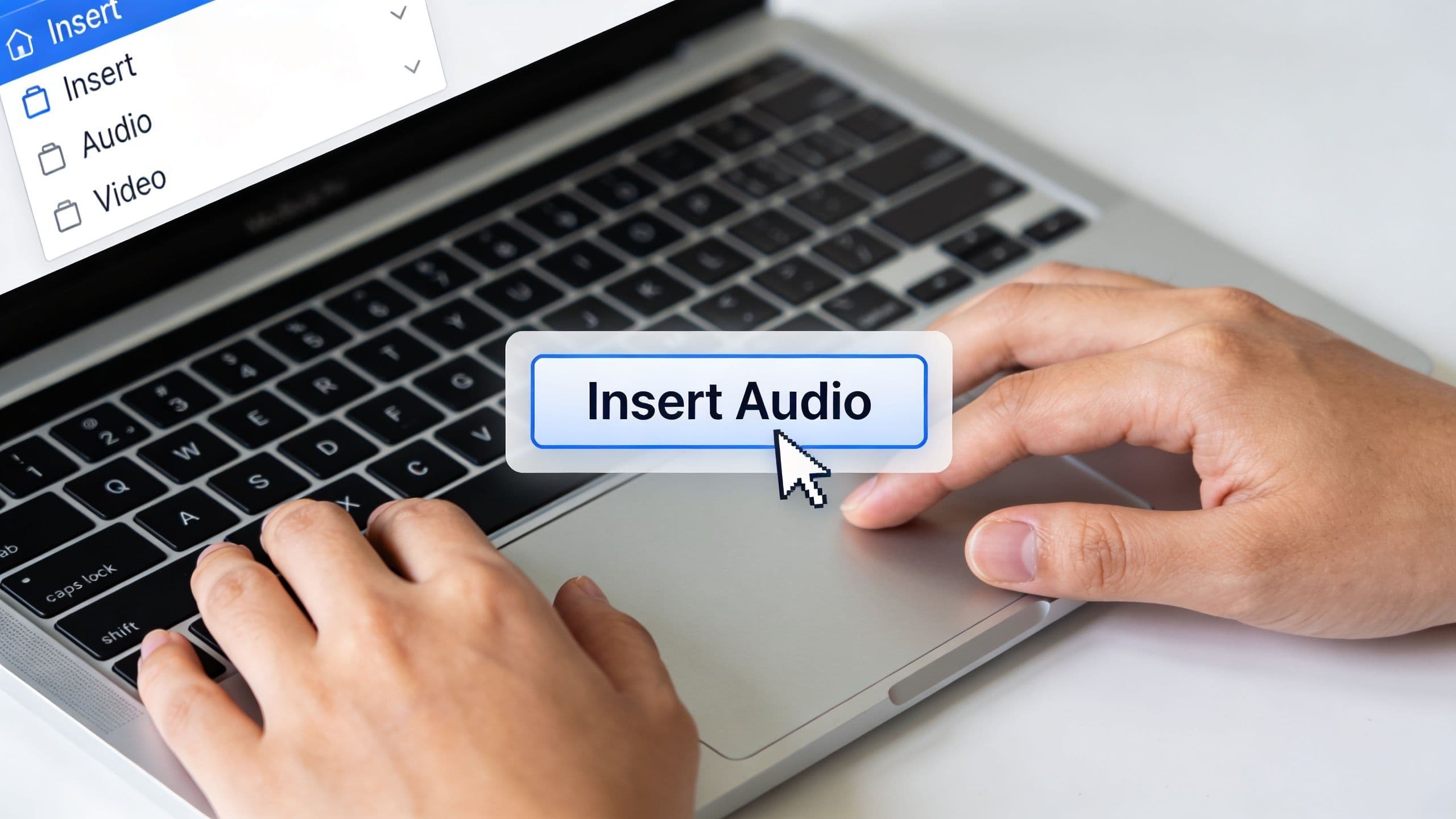
On desktop PowerPoint, the most reliable route is:
- Go to the slide where the audio should start.
- Click Insert .
- Choose Audio .
- Select Audio on My PC on Windows, or the equivalent file-based audio option on Mac.
- Pick your music file and insert it.
- Click the audio icon, then open the Playback tab.
From there, the standard settings for continuous background music are:
- Play Across Slides
- Loop until Stopped
- Start Automatically
That combination is the core setup described in this audio workflow reference from MyExcelOnline. The same source notes that embedding the file, which is the default behavior, is the professional choice because linked files fail when shared across devices in an estimated 60% of cases.
Why embedding matters
This is the mistake I see most often in client decks. The presentation works perfectly on the creator's laptop, then fails in rehearsal on the event machine because the audio file lived in a local folder, cloud drive, or desktop path that didn't travel with the deck.
Embedded audio lives inside the PowerPoint file. That means the presentation carries its soundtrack with it.
Linked audio points PowerPoint to an external file. That can work while you're editing, but it's fragile the moment you send the deck to a producer, student, client, or teammate.
If the presentation is going to leave your computer, treat embedding as mandatory.
That's especially important for trainers and educators who distribute slide files for replay or internal use. If you also work in Google Slides, this tutorial on adding voice on Google Slides is a useful contrast because Slides handles media differently and the portability assumptions aren't the same.
Windows and Mac notes that actually matter
The insertion path is similar across both desktop versions, but what matters in practice is less about menu labels and more about testing the final deck on the machine that will present it.
A few field-tested habits help:
- Use local files while editing . Don't pull audio from a synced folder that might not be available offline.
- Insert from your final version . Don't keep swapping tracks after timing is already built.
- Rename files cleanly . Simple filenames reduce confusion when you archive multiple deck versions.
- Run slideshow mode, not just normal view . Audio behavior often looks fine in edit mode and behaves differently in presentation mode.
If you want to watch the click path before doing it yourself, this quick walkthrough is useful:
A professional setup habit
Insert the file, set playback, then save a duplicate of the deck before doing anything more advanced. Once you start trimming, fading, sequencing, or exporting, it helps to have one clean version with known-good audio in place.
That one habit saves a lot of recovery work later.
Mastering Your Audio Playback Controls
Adding a track is mechanical. Making it feel invisible is the key skill.
Most of the finesse lives in the Playback tab, transforming PowerPoint from "yes, music exists" to "the soundtrack behaves like part of the presentation." For decks with music, that matters because presentations using music have been associated with a 25% to 40% increase in audience information retention, and PowerPoint's Play in Background setting has, since 2016, reduced setup time from minutes to seconds. The same verified reference also notes that 55% of corporate decks use features such as Play Across Slides and fades of up to 15 seconds for a more polished result, as described in this PowerPoint audio video reference.
The one-click setting most people should use
If you want one track to run under the whole deck, Play in Background is usually the correct choice.
That single option applies the settings many people otherwise click one by one. It typically turns on continuous playback behavior, starts the track automatically, and keeps the music moving through the deck with less manual setup. For simple webinar intros, looping event slides, and self-running presentations, it's the fastest clean solution.
Controls worth mastering
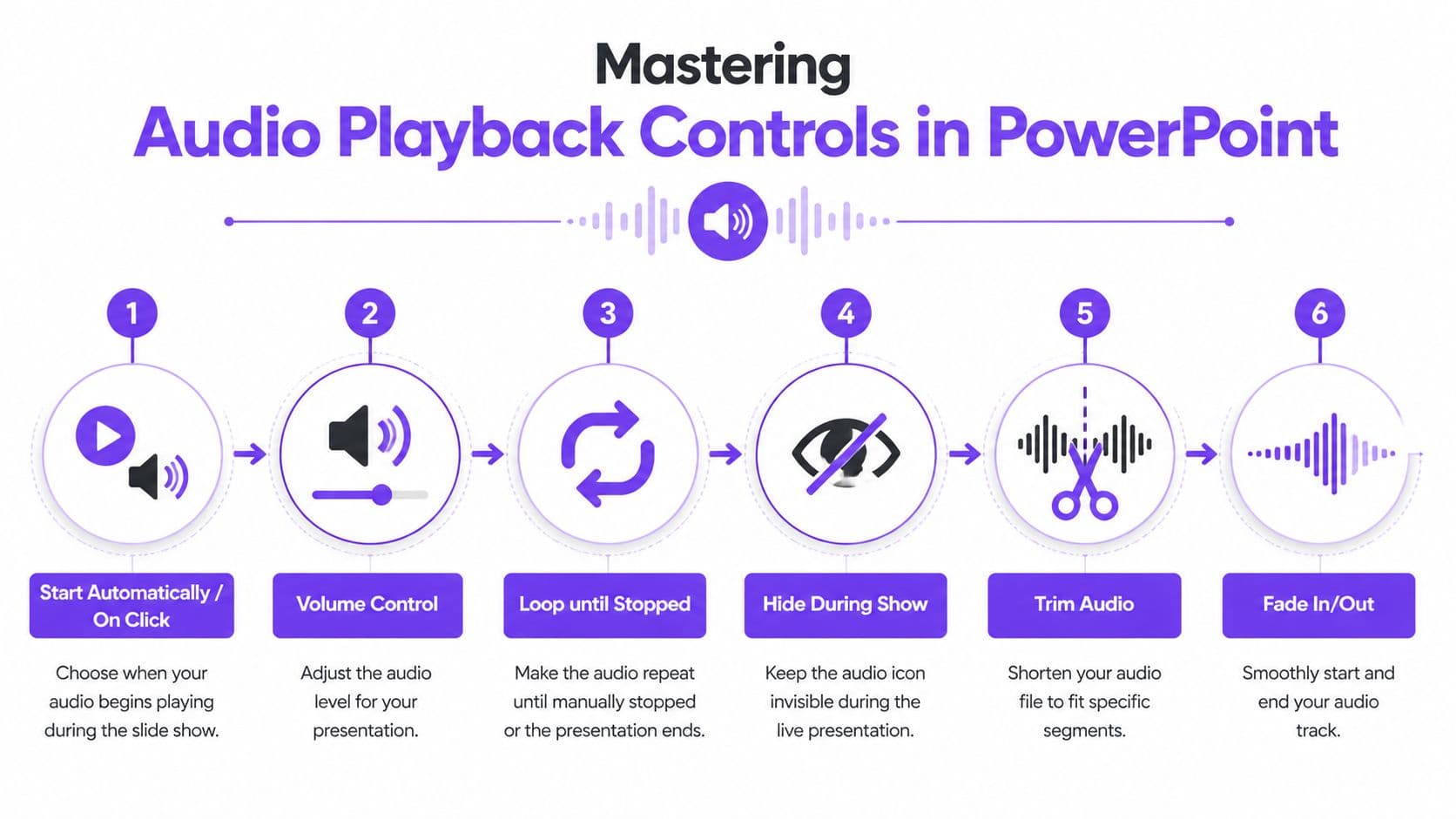
The Playback tab gives you more than one useful switch. Each one has a specific job.
Start automatically or on click
Use Start Automatically when the deck should feel self-contained. This works well for welcome slides, recorded lessons, and kiosk-style presentations.
Use On Click when music is a deliberate cue and you want to decide exactly when it enters. This is better for live workshops where you may chat before formally starting.
Play across slides
This tells PowerPoint not to stop the audio at the next transition. Without it, your soundtrack often dies after the first slide and the whole setup feels broken.
Use it when one continuous track should support several sections or the entire deck.
Loop until stopped
This is useful when the presentation is longer than the selected audio file, or when a waiting room slide may stay on screen for an unpredictable amount of time.
Be careful with looping tracks that have a dramatic ending. The repeat will feel amateurish if the loop point is obvious.
Music should fill the space without announcing its own mechanics.
Hide during show
The speaker icon is useful while editing and distracting during delivery. If the deck is client-facing, audience-facing, or recorded, hide it.
That small step removes one of the most common signs of an unfinished presentation.
Trim, fade, and volume
Decks start sounding intentional now.
- Trim Audio helps remove long intros, awkward silence, or irrelevant endings. If the track only becomes useful after a slow musical build, trim the dead opening.
- Fade In softens the start. This matters when a track begins under speech.
- Fade Out prevents the deck from ending with a hard stop.
- Volume lets music support narration instead of competing with it.
For course creators recording voiceovers, I usually recommend starting with the music lower than you think you need. Spoken content carries the actual value. The soundtrack's job is support.
If you're building narrated lessons, this training video creation guide is worth reading alongside your audio setup because voice, visuals, and background music have to be balanced as one system.
A simple decision framework
Use this if you don't want to overthink settings:
| Situation | Best playback choice |
|---|---|
| Full-deck background track | Play in Background |
| Waiting room or lobby slide | Loop until Stopped + Start Automatically |
| One section only | Start on target slide + Trim Audio |
| Spoken lesson with subtle bed | Fade In/Out + lower Volume |
| Live presentation with manual timing | On Click |
What separates polished decks from noisy ones
A polished deck uses audio sparingly and predictably. It starts cleanly, stays in the background, and ends without drawing attention to itself.
An amateur deck usually has one of three problems. The music starts too loudly, stops unexpectedly, or keeps playing with no relation to the room. The fix is almost always in Playback controls, not in the track itself.
Choosing the Right Audio Format and File
Before you insert anything, choose the file format carefully. This decision affects three things immediately: compatibility, presentation size, and how much cleanup you'll need later.
For most PowerPoint work, the practical choice is MP3. Microsoft's support guidance for playing music across multiple slides centers on MP3 and WAV as the dependable formats, and the verified material also notes MP3 compatibility is strong across Windows and Mac in current support guidance. WAV still has a place, but mainly when you need maximum raw quality and don't care about file size.
The trade-off that matters
Creators often assume better audio quality always means a better presentation. In practice, oversized audio files create more problems than they solve. They make decks harder to send, slower to upload, and more fragile in shared workflows.
If your source file is in an awkward format, use a tool to convert audio files before importing them into PowerPoint. That's usually faster and cleaner than trying to force PowerPoint to behave nicely with a format it doesn't love.
Audio format comparison for PowerPoint
| Format | Quality | File Size | Compatibility | Best Use Case |
|---|---|---|---|---|
| MP3 | Strong for most presentation needs | Small | Very good on desktop PowerPoint | Background music, webinars, online courses |
| WAV | Very high | Large | Reliable, but heavy | Short clips where file size doesn't matter |
| AAC | Often good | Usually smaller than uncompressed formats | Can work, but I'd test carefully | Pre-produced media workflows when already exported this way |
| WMA | Acceptable in some Windows workflows | Moderate | Less dependable outside Windows | Legacy Windows-only environments |
What I'd choose in real projects
For almost every client deck, course module, or webinar intro, I'd start with MP3. It gives the best balance between portability and quality, and it reduces the odds of presentation bloat.
WAV is easier to justify for very short sound effects or controlled in-house playback. For anything that gets emailed, uploaded, or handed to another person, WAV becomes a burden quickly.
Working rule: Pick the smallest file that still sounds professional through speakers, a headset, and screen recording playback.
If your presentation is part of a broader digital product, this same logic applies to other assets too. This overview of digital downloads is a useful reminder that delivery format is part of product quality, not a technical afterthought.
Using Music Legally in Your Presentations
A lot of presentation advice skips the licensing issue or treats it like a footnote. That's a mistake, especially if you sell courses, run paid webinars, publish workshops, or present under a company brand.
If you drop a popular commercial song into your deck because it "sounds right," you may create a problem that has nothing to do with PowerPoint. The issue isn't whether the file plays. The issue is whether you have the right to use it in that context.

What professional use actually requires
For business presentations, training products, paid communities, and course content, the safe route is licensed music. In practice, that usually means royalty-free or stock music from a provider whose license terms fit your use case.
"Royalty-free" doesn't mean "free." It usually means you pay under a license model that allows specified uses without ongoing royalty payments per play.
That distinction matters because creators often grab audio from YouTube, Spotify, or social platforms and assume private editing equals permitted commercial use. It doesn't.
A practical license checklist
Before you use a track, confirm these points:
- Commercial use . Can you use it in a paid course, webinar, or branded presentation?
- Distribution rights . Can the deck be shared, downloaded, or replayed?
- Platform coverage . Does the license allow use in exported videos, livestreams, and hosted lessons?
- Attribution rules . Some libraries require credit. Others don't.
- Modification rights . You may need to trim, loop, or fade the file.
If you already manage content on audio platforms and want a clear non-lawyer primer on detection and copyright checks, this guide for SoundCloud channel owners is a helpful reference because it clarifies how copyright systems can flag music use even when creators think the use is harmless.
Licensed music doesn't limit your creativity. It protects the asset you're building.
Why this matters for brand trust
The strongest reason to use legal music isn't fear. It's professionalism.
When you sell knowledge products, your presentation isn't just a file. It's part of your brand. Cutting corners on music licensing introduces a risk that's completely avoidable. It can affect replays, hosted videos, platform moderation, client trust, and your confidence in repurposing the presentation later.
Royalty-free libraries are often better than mainstream songs for another reason. They're built to sit under speech. They're arranged to support content rather than dominate it, which makes them more usable in webinars, lessons, and slide-based explainers.
That's not a compromise. It's a better fit.
Troubleshooting Common PowerPoint Audio Problems
Even when you know how to add music to PowerPoint presentations correctly, playback can still fail at the worst possible moment. That's not unusual. Cross-platform delivery is one of the most fragile parts of presentation design.
The verified data makes that clear. 45% of users present on mixed devices, audio features like Play Across Slides can fail on mobile versions, some Mac-to-Windows exports hit a 30% failure rate for certain audio types, and uncompressed embedded audio can increase file size by 200MB+, according to the verified reference tied to PPT Productivity's discussion of PowerPoint audio issues.
Problem the music stops after one slide
This is the classic symptom of incomplete playback setup.
Fix:
- Select the audio icon.
- Open Playback .
- Turn on Play Across Slides .
- If needed, use Play in Background instead.
If the deck still fails on a tablet or phone, assume the mobile app is the limitation, not your settings. Test on the actual presentation device before the live session.
Problem the file works on your computer but nowhere else
This usually points to file handling or format mismatch.
Fix:
- Reinsert the track as an embedded file.
- Prefer MP3 if the current format behaves inconsistently.
- Save a copy and test it on the target machine.
- If you're moving from Mac to Windows, don't trust a desktop preview alone. Open the actual PowerPoint file on Windows and run slideshow mode.
For distributed presentations, I also recommend sending a test deck to yourself through the same channel your client or student will use. That exposes broken assumptions fast.
Problem the PowerPoint file becomes huge
This is usually caused by large uncompressed audio, often WAV or another heavy source file.
Fix:
- Replace the audio with a smaller, presentation-friendly version.
- Trim unnecessary duration before import when possible.
- Use compressed audio for long background tracks.
- Keep only the segments that serve the presentation.
If your deck has already become unwieldy, don't just keep saving over it. Create a fresh copy, remove the oversized audio, and reimport a leaner file.
Problem the icon shows during the presentation
That one is simple, but it makes a deck look unfinished.
Fix:
- Select the audio object.
- In Playback , turn on Hide During Show .
If the icon still appears, check whether you inserted multiple audio objects and only hid one of them.
Problem the music competes with your voice
This isn't a technical failure, but it damages comprehension just as quickly.
Fix:
- Lower the track volume.
- Add a short fade-in.
- Trim busy intros or dramatic peaks.
- If the deck is narration-heavy, use music only for opening, closing, or section transitions.
The best troubleshooting step is still a full rehearsal in slideshow mode with the exact device, speakers, and sharing method you'll use live.
One more edge case matters for distributed lessons and hosted slide decks. Sometimes the issue isn't the audio file at all. It's the playback environment. Browser-based viewers, embedded lesson pages, and exported media wrappers can all change behavior. If you're diagnosing media failures more broadly, this guide to videos not playing is useful because the same delivery logic often affects audio too.
FAQ
What audio file format should I use when adding music to a PowerPoint presentation?
MP3 is the practical choice for most PowerPoint work because it balances quality with a small file size and works well across Windows and Mac. WAV is only worth using for very short clips or controlled in-house playback where file size does not matter. Pick the smallest file that still sounds professional through speakers, a headset, and screen recording playback.
Why does my background music stop playing after the first slide?
By default, an inserted audio file only plays on the slide it was added to. To make it continue across the deck, open the Playback tab and enable Play Across Slides, or use the one-click Play in Background option, which turns on continuous playback, automatic start, and keeps the music moving through the deck with less manual setup.
Should I embed the audio file or link to it?
Always embed the file if the presentation is going to leave your computer. Linked audio points PowerPoint to an external file and fails when shared across devices in an estimated 60% of cases, while embedded audio lives inside the PowerPoint file so the deck carries its soundtrack with it. Treat embedding as mandatory for trainers, educators, and anyone distributing decks for replay.
Can I legally use any song I like in a paid course or webinar presentation?
No. For business presentations, training products, paid webinars, and course content, the safe route is licensed music, typically royalty-free or stock music from a provider whose license terms match your use case. Note that royalty-free does not mean free, it means you pay under a license that permits specified uses without ongoing per-play royalties.
How do I keep background music from overpowering my narration?
Use the Volume control on the Playback tab and start with the music lower than you think you need, since spoken content carries the actual value and the soundtrack's job is support. Add Fade In so the track eases under speech and Fade Out so the deck does not end on a hard stop. If the audience notices the music more than the message, the track is too loud or wrong for the room.
If you create courses, webinars, communities, or digital products, it helps to manage the whole delivery experience in one place instead of stitching together scattered tools. Zanfia is built as an AI team that runs the creator business behind your courses, community, paid content, and digital sales, so you can dictate what needs to happen by chat or voice and let the assistant do the work inside the platform. It ships with a checkout built to sell (order bumps, installments, upsells, and test mode so you can buy your own product before launch), 12 product types living under one brand, native video hosting, white-label branding on every plan, an MCP endpoint so your own AI agents can act on the workspace on higher plans, and a 14-day free trial with no credit card. The current model is 0% platform commission on customer sales, with only the payment processor (Stripe or PayPal in the US, roughly 2.9% + $0.30) taking its standard cut. For creators who want cleaner operations and more control over how their content is delivered, it's a practical platform to look at.